Today, you will find tons of different applications developed specifically for blocking, preventing and stopping pop-up, pop-under and the various other annoying advertisements we have to contend with on the internet. In this article, I intend to talk about the different internet browsers and the measures they have taken to block ads.
Note: All internet browsers today come with their own pop-up blocker. Thus, if you have initiated all the correct measures to block ads on your browser, but are still getting ads, then it’s most likely your computer has been infected with a virus. Running a malware scan should thus be your next cause of action.
Using Internet Explorer
For those users that use Microsoft Internet Explorer to browse the internet, they should be grateful in the knowledge that Microsoft has included their own built in pop-up blocker with the browser. This feature is usually enabled by default, however, you can disable or enable it as and when you deem fit. To do this, simply do the following:
1. First, boot into your computer with a user profile that has administrative rights, then load up Internet Explorer by double clicking on its Desktop icon.
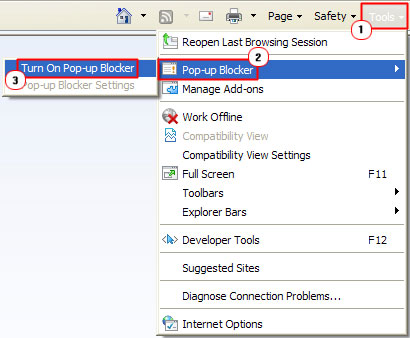
2. Once Internet Explorer is on, click on Tools -> Pop-up Blocker -> Turn on Pop-up Blocker.
Google Toolbar
In the past, it was recommended that users of Microsoft Internet Explorer downloaded and installed Google Toolbar, which comes with its own built-in pop-up blocker. With the combined efforts of both blockers, you can rest assured that your system would be free of most ads.
Using Mozilla Firefox
One of the main reasons why so many Internet Explorer users switched over to Mozilla Firefox was not just because of its usability, but also because of its ability to block most ads.
For users of Firefox, it’s possible for you to enable or disable the pop-up blocker by doing the following:
1. First, you must boot into your computer, with an administrator user profile, and then load up Firefox, by clicking on its Icon.
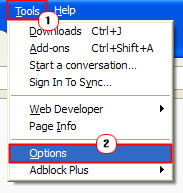
2. Once Firefox loads up, click on Tools -> Options.
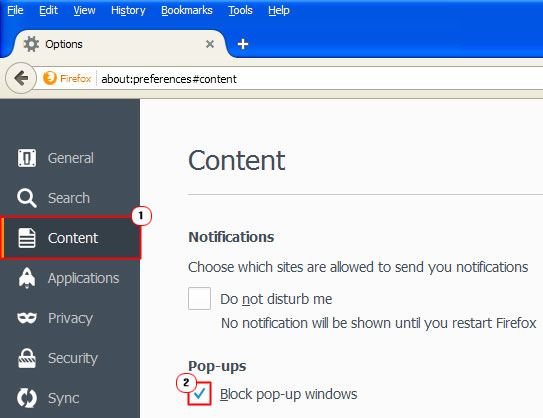
3. This will take you to the Options menu, from here, click on Content Button, then check the box next to Block pop-up windows.
Using Google Chrome
Google Chrome, just like the other major internet browsers also comes with its own pop-up blocker and it does a pretty decent job at blocking most ads.
If you would like to enable or disable this feature in Google Chrome, then you can do so, by doing the following:
1. First you will need to boot into your computer and load up Google Chrome by clicking on its Icon.
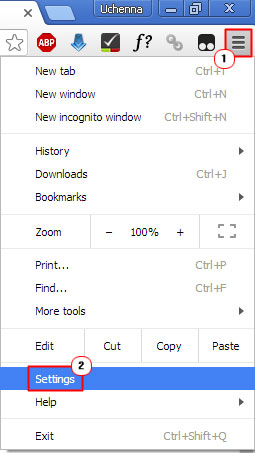
2. Once Google Chrome is up and running click on the Top-Right Icon, followed by Settings.
3. This will take you to the Settings screen, from here, scroll down and click on Show advanced settings.
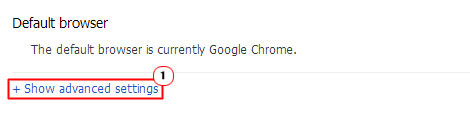
4. In the Privacy Section, click on the Content Settings Button.
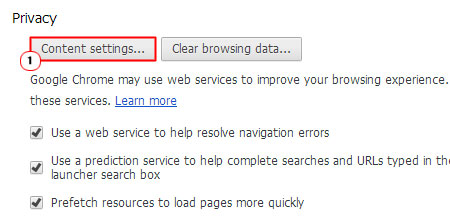
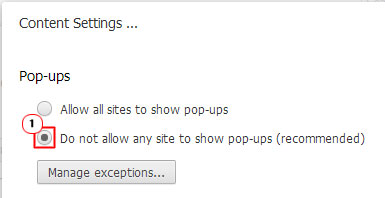
5. From the Content Settings screen, scroll down to Pop-ups and click on the Do not allow any site to show pop-ups option, then click on Finished.
Third-Party Pop-Up Blockers
As I previously mentioned, there are tons of different third-party pop-up blocker solutions, available to the end user. Some of these solutions are free while others are made available at a small fee to the user.
However, of the various ad-blocking tools, there is one plug-in that most users tend to install on their browsers, as it’s able to work quietly in the background without adversely affecting your surfing experiencing. This tool is called Adblock. It’s basically a simple download and install, and will start to operate immediately after it’s up and running.
Another thing to note is that many internet security suites come with their own pop-up blocking capabilities. The advantage of using one of these applications is that they not only provide protection against ads but also against malware, viruses and spyware.
–AUTHOR INFO—
Uchenna Ani-Okoye is a former IT Manager who now runs his own computer support website; find solutions to a plethora of computer problems on his site at https://www.compuchenna.co.uk